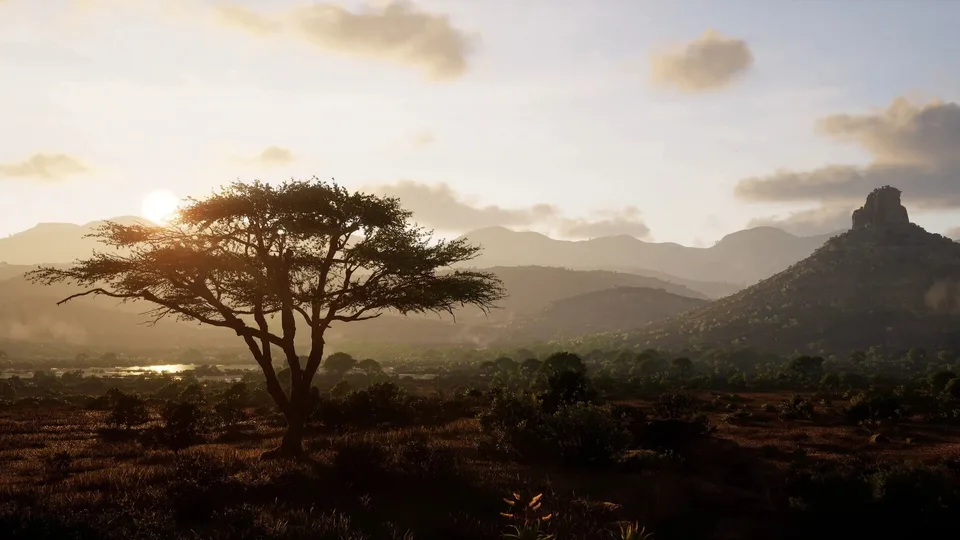
Way of the Hunter 2 on Steam Deck: Performance and Tips
Discover how to optimize your hunting experience with Way of the Hunter 2 on Steam Deck. Get expert tips on settings, controls, and gameplay performance.
Published: Way of the Hunter 2 Wiki Editorial Team
Table of Contents
The wilderness is calling, and with the release of Way of the Hunter 2, players are eager to know if they can take this immersive simulation on the go. If you are wondering about the Way of the Hunter 2 Steam Deck experience, you are in the right place to learn how to master the hunt from the palm of your hands.
As a successor to the original, Way of the Hunter 2 brings more dynamic ecosystems and realistic animal behaviors to the forefront. Whether you are tracking a trophy moose in North America or navigating the dangerous terrain of Africa, having a portable setup is essential for modern hunters. In this guide, we will break down the performance expectations and the best practices for playing this title on Valve’s handheld device.
Understanding the Way of the Hunter 2 Steam Deck Experience
Since its launch on September 29, 2026, Way of the Hunter 2 has been verified as "Playable" on the Steam Deck. This status confirms that while the game is fully functional, users may need to make minor adjustments to ensure the best possible framerate and battery efficiency. Because the title utilizes the power of Unreal Engine 5 to deliver stunning visuals, the hardware requirements are quite demanding.
Performance Expectations at a Glance
To give you an idea of what to expect, we have compiled a table comparing the handheld experience to standard PC performance.
Feature
Steam Deck (Handheld)
Desktop PC (Recommended)
Resolution
800p (Native)
1440p / 4K
Target FPS
30-40 FPS
60+ FPS
Graphics Preset
Low/Medium
High/Ultra
Battery Life
~1.5 - 2 Hours
N/A
As indicated by the official Steam store page, the game is quite resource-intensive. For the best experience, we recommend keeping your device plugged in or using a high-capacity power bank during long tracking sessions.
Optimizing Your Settings for the Hunt
When playing Way of the Hunter 2 on Steam Deck, the key is balancing visual fidelity with smooth movement. Tracking animals requires a steady frame rate, especially when you are lining up a long-distance shot.
Recommended Graphics Tweaks
FSR (FidelityFX Super Resolution): Enable FSR in the game settings and set it to "Quality" or "Balanced." This will help maintain a higher resolution while boosting your framerate.
Shadow Quality: Lowering shadows to "Low" or "Medium" provides the most significant performance gain without ruining the atmosphere.
Volumetric Clouds: These look beautiful but eat up GPU power. Set them to "Low" to ensure your frame times remain consistent during dense forest traversal.
Tip
Performance Tip
If you experience stuttering in high-density areas like the Kilimaya Reserve, try locking your frame rate to 30 FPS via the Steam Deck's Quick Access Menu. This provides a much more stable experience than an unlocked, fluctuating frame rate.
Mastering Gameplay Mechanics on Handheld
The gameplay loop in Way of the Hunter 2 involves patient tracking, herd management, and precise marksmanship. The transition to the Steam Deck controller layout feels intuitive, but there are specific settings you should adjust to improve your hunting efficiency.
Essential Control Adjustments
Sensitivity Curves: The default stick sensitivity can be a bit twitchy for long-range shots. Consider lowering the sensitivity for aiming down sights (ADS) in the game's control menu.
Gyro Aiming: This is a game-changer for hunting simulations. Enable "Gyro to Mouse" in the Steam Input settings. This allows you to use the physical tilt of your Steam Deck for micro-adjustments, making it much easier to hit those vital organs (heart/lungs) during a shot.
Back Button Mapping: Map the "Hunter Sense" (U key) to one of the rear grip buttons (L4 or R4). This allows you to toggle tracking mode without taking your thumb off the movement stick.
Community Insights: What Players Are Saying
According to community reports on the Steam forums, many players have successfully integrated the "Hearth & Hunt" lodge management into their daily routine using the Steam Deck. A recurring topic among users is the use of the new hunting dog, "Chief."
Dog Feature
Benefit for Handheld Players
Blood Tracking
Saves time searching dense brush.
Alerting
Helps identify nearby game without constant manual scanning.
Bonding
Encourages consistent gameplay sessions.
Players have noted that the dog’s AI is particularly helpful when playing on a smaller screen, as it reduces the need to constantly scan the horizon for subtle movement markers.
Preparing for Your First Hunt
Before you set out, make sure you have the right gear. The game features a robust shop system where you can buy rifles, scopes, and calls.
Start with the basics: Purchase the .65 rifle early on; it offers superior accuracy with minimal recoil, which is ideal for the Steam Deck’s input limitations.
Use the Shooting Sticks: Since your hands may tire during long sessions, the shooting sticks are essential. They drastically reduce weapon sway, compensating for any minor hand tremors.
Check the Weather: Use the in-game map’s weather forecast (T mode) before committing to a trek. Poor weather can make visibility on the Steam Deck screen quite difficult.
FAQ: Way of the Hunter 2 on Steam Deck
Q: Is Way of the Hunter 2 Steam Deck compatible without tweaks?
A: Yes, it is marked as "Playable." However, you will get a much better experience by applying the recommended FSR settings and adjusting your control sensitivity.
Q: Can I use cloud saves to switch between PC and Steam Deck?
A: Absolutely. Way of the Hunter 2 supports Steam Cloud, meaning your progress in New Laurentia or the Kilimaya Reserve will sync seamlessly between your devices.
Q: How does the battery life hold up?
A: Due to the high graphical fidelity of the game, expect about 90 to 120 minutes of gameplay on a full charge. We recommend a portable charger for extended sessions.
Q: Are the text and UI readable on the small screen?
A: Yes, the developers have optimized the UI for smaller displays, though you may occasionally need to use the magnifier tool (Steam + L1) if you are deep into the complex menu systems like the skill tree or hunting log.