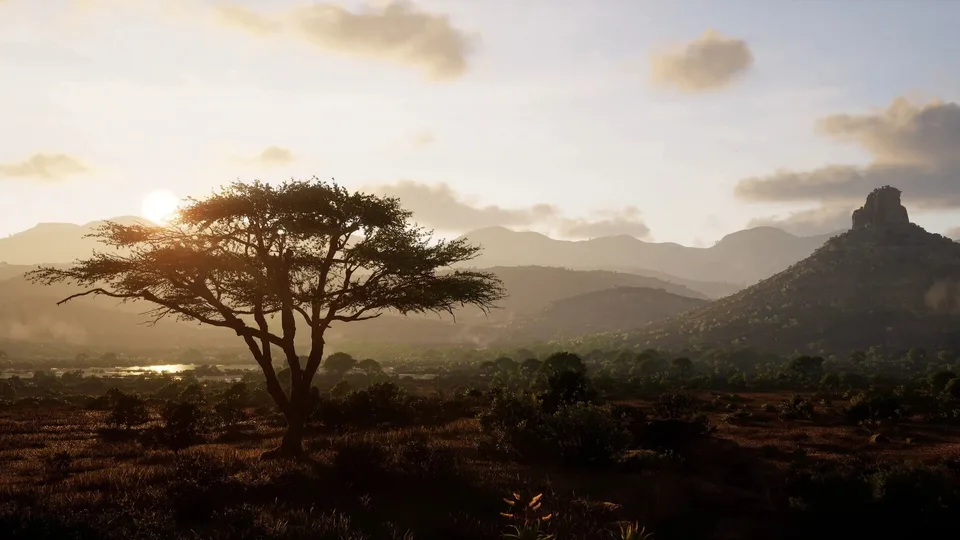
Way of the Hunter 2 Best Graphics Settings: Optimize for Visuals & FPS
Discover the Way of the Hunter 2 best graphics settings to balance stunning environmental fidelity with smooth performance. Optimize your hunting experience today.
Published: Way of the Hunter 2 Wiki Editorial Team
Video Guide
The Ultimate 4K Settings For 60+ FPS | Way of the Hunter 2 Early AccessTable of Contents
Finding the perfect balance between visual fidelity and frame rate is the hallmark of a great hunting simulation experience. If you are looking for the Way of the Hunter 2 best graphics settings, you are likely trying to reconcile the game's expansive, detailed environments with the performance capabilities of your specific PC hardware. Achieving the Way of the Hunter 2 best graphics settings isn't just about cranking every slider to "Ultra"; it is about understanding how individual visual components impact your GPU and CPU to ensure the most immersive hunt possible.
In this guide, we will break down the essential configuration tweaks that help you maintain a stable frame rate while preserving the lush, lifelike visuals that define the game. Whether you are stalking prey in dense forests or scanning open plains at long distances, these optimizations will help you get the most out of your setup.
Understanding Visual Fidelity in Way of the Hunter 2
The graphical landscape of Way of the Hunter 2 has become a hot topic in community circles. Players often compare it to older titles, noting that while the new engine offers superior object rendering and environmental interaction, it also demands more from your hardware. According to community discussions, some players feel that the "atmosphere"—the way light interacts with fog, clouds, and foliage—is what truly defines the game's look.
When you are configuring your settings, it is important to remember that "better" graphics are subjective. Some players prioritize sharp, high-contrast textures, while others prefer soft, cinematic lighting and realistic weather effects. The goal of this guide is to provide a baseline that ensures the game looks crisp at the ranges where hunting matters—typically 400 to 1,200 yards—without sacrificing the smoothness needed for tracking animals.
The Impact of Modern Engine Technology
Way of the Hunter 2 utilizes a modern game engine designed to handle complex geometry and large-scale rendering. Unlike older titles that might struggle with long-distance rendering, this game excels at keeping distant trees and terrain looking natural. However, this complexity means that poorly optimized settings can lead to stuttering or "cartoonish" visual artifacts.
Recommended Way of the Hunter 2 Best Graphics Settings
To achieve the Way of the Hunter 2 best graphics settings, you should start with a "High" preset as a foundation and then manually adjust specific parameters that are known to cause performance bottlenecks. Based on general community consensus and hardware optimization standards, the following configuration offers the best balance for most mid-to-high-end gaming PCs.
Baseline Configuration Table
Use this table as a starting point. Adjust these settings downward if you experience frame drops in dense, high-foliage areas.
Setting
Recommended Value
Reasoning
Display Mode
Fullscreen
Reduces input lag and overhead.
Resolution Scale
100% (Native)
Keeps image crisp; avoid scaling below 90%.
Texture Quality
High
High-quality assets look better at distance.
Shadow Quality
Medium
High settings often provide diminishing returns.
Foliage Quality
High
Crucial for immersion and spotting movement.
View Distance
Ultra
Vital for long-range hunting.
Anti-Aliasing
TAA
Best for smoothing out jagged edges on trees.
Motion Blur
Off
Personal preference, but better for clarity.
Tip
Performance vs. Clarity
If you are struggling with frame rates, prioritize lowering Shadow Quality and Ambient Occlusion before reducing Texture Quality. Shadows are often the biggest performance killer in Unreal Engine-based titles.
Balancing Visual Fidelity and Frame Rate
The core challenge in finding the Way of the Hunter 2 best graphics settings is maintaining clarity at long distances. Many players report that the game looks best when the image is smooth, especially when turning the camera. If your frame rate fluctuates, the "smoothness" of the trees and branches can suffer, making it harder to spot animals against the background.
Why View Distance is King
In a hunting game, your ability to see across the map is your most important tool. While it is tempting to set everything to "Ultra," the View Distance setting is the one you should never compromise on. Even if you have to lower other settings to "Medium," keep your View Distance at "High" or "Ultra." This ensures that the terrain, trees, and animals are rendered correctly at ranges exceeding 600 yards.
Managing Foliage and Undergrowth
Community reports suggest that the forested areas are where the game truly shines. However, dense foliage can be taxing. If you notice stuttering when walking through a forest, consider dropping Foliage Density by one step. This reduces the number of rendered plants without significantly impacting the "alive" feeling of the woods.
Troubleshooting Common Graphical Issues
Even with the perfect settings, you might encounter visual artifacts or performance dips. Here is how to address the most common issues reported by the community.
1. The "Blurry" Look
If the game looks blurry, check your Anti-Aliasing settings. While TAA (Temporal Anti-Aliasing) is great for jagged edges, it can sometimes produce a soft, blurry image. If your GPU supports it, try using a sharpening filter through your graphics driver software (NVIDIA Control Panel or AMD Adrenalin) rather than relying solely on in-game post-processing.
2. Micro-Stuttering
Micro-stuttering often occurs when the GPU is trying to load high-fidelity assets into VRAM too quickly.
Update your drivers: Ensure you are running the latest Game Ready drivers.
Limit your FPS: If your monitor is 60Hz, cap your frame rate at 60 FPS. This reduces unnecessary GPU load and smooths out frame pacing.
3. Pop-in Effects
If you notice objects "popping" into existence as you move, this is usually tied to View Distance or Object Quality. Ensure these are set to at least "High." If the issue persists, check if your game is installed on an SSD; slow HDD read speeds are a common, often overlooked cause of texture and object pop-in.
Advanced Optimization Tips
To truly maximize your experience, you should look beyond the in-game menu. The Way of the Hunter 2 best graphics settings often rely on external factors that Windows or your graphics card driver controls.
Leveraging Driver-Level Settings
For NVIDIA users, the "Shader Cache Size" in the NVIDIA Control Panel can be set to "Unlimited" or a high value (like 10GB) to help reduce stuttering in open-world games. For AMD users, enabling "Radeon Anti-Lag" can help keep input latency low, which is vital for precise shots.
Monitor and Refresh Rate
Ensure your Windows display settings match your monitor's native refresh rate. It is a simple step, but many players accidentally run their high-refresh-rate monitors at 60Hz, which makes the game feel less responsive regardless of your in-game graphical settings.
The "Sharpening" Debate
Some players prefer a sharper image to make animal silhouettes stand out against the landscape. If the game feels too soft, look for a "Sharpening" or "Image Scaling" option in your driver software. Use this sparingly; too much sharpening can introduce "grain" and make the image look artificial.
Q: What are the Way of the Hunter 2 best graphics settings for low-end PCs?
A: For lower-end hardware, set the overall preset to "Low" or "Medium." Crucially, keep "View Distance" at "High" to ensure you can still see game-critical objects, and disable "Motion Blur" and "Ambient Occlusion" to free up GPU resources.
Q: Why does the game look "cartoonish" to some players?
A: This is largely a subjective debate regarding the game's lighting and post-processing effects. If you find the look too artificial, try adjusting the "Contrast" or "Color Grading" settings if available, or use your monitor's OSD settings to tweak the saturation and warmth to your preference.
Q: Does changing graphics settings affect animal behavior?
A: No, your graphics settings only affect the visual representation of the game. The underlying simulation—animal AI, pathfinding, and spawning—remains consistent regardless of your visual configuration. However, better visibility (via higher View Distance) naturally helps you spot those animals more effectively.
Q: Should I use FSR or DLSS if available?
A: If you are struggling to maintain a stable frame rate, yes. These upscaling technologies are excellent for gaining performance without a significant loss in visual quality. Start with "Quality" mode and adjust based on your preference for image clarity versus frame rate.